Welcome aboard to the our video site for sailors. We are being constantly blasted by scammers and pirates, so registration is invite only
contact@sailorsahoy.com with "Invite". No spam, no newsletters. Just a free account
Cortos crear

While having been in the "gamle by" in Arhus I took the chance to use my Ricoh Theta V camera in order to make some 360° footage. Afterwards I tried out my workflow to get the spatial audio through my Cyberlink PowerDirector video processing. Workflow: 1. Connect Theta V via USB to your computer 2. Copy the video(s) to you computer (e.g. d:\temp\) 3. Start the "RICOH THETA" app 4. Drag'n'drop the video file(s) (you can select more than one video file) from your computer location (e.g. d:\temp\) onto the "RICOH THETA" app window (or just use open from the file menue) 5. Let the "RICOH THETA" app stich your video(s). It will output a file at the same location (e.g. d:\temp\) with the filename being extended by "_er" (the filename extension is still ".mp4") 6. Drag'n'drop the video file (unfortunately one by one) from your computer location (e.g. d:\temp\) onto the the "RICOH THETA Movie Converter" app icon (e.g. the one on the Desktop) 7. Let the "RICOH THETA Movie Converter" app convert the dropped video file. It will output a file at the same location (e.g. d:\temp\) the same name but the extension ".mov" 8. Open "Cyberlink PowerDirector" go to settings and make sure that under general you configure the used audio channels to "5.1 Surround". 9. In "Cyberlink PowerDirector" import the processed video file(s) with the extension ".mov". 10. In "Cyberlink PowerDirector" drag your video file(s) with the extension ".mov" to the timeline of your 360° project. 11. After editing (avoid changing the audio channel(s) of the Theta V videos except cutting, fading) produce a 360° video with enabled "Surround-Sound" and "Dolby Digital 5.1" 12. Start the "Audacity" app and open the 360° video file produced by "Cyberlink PowerDirector" in it (or just drag'n'drop the file to the desktop icon). You will experience 6 audio channels. 13. In "Audacity" go to "Edit" "Settings" and make sure that for "Import / Export" and "Export of audio" the tick is set for "use own mix" (and no tick for downsample to mono/stereo). 14. In "Audacity" export these audio channels by using "File" / "Export" / "Audio export" (same as CTRL-Shift-E). Change the filename to make it same as the video filename (besides the file extension), leave "WAV (Microsoft) signed 16bit PCM" and press "Save". 15. Now you get an additional selection box. Change the slider to output of four audio channels first. Then you need to edit the lines from the boxes of the left hand side to the boxes on the right hand side. Make left1 being connected only to right1. Make left2 being connected only to right3. Make left3 being connected only to right2. Make left5 being connected only to right4. Now press ok twice. 16. Now we need to replace the audio track of the produced video of "Cyberlink PowerDirector" with the one generated by "Audacity" by using "FFQueue". 17. Start the "FFQueue" app (remove all old jobs if there are some) press the "Add" button and select the produced video of "Cyberlink PowerDirector". Because the audio file has the same filename it will be recognized automatically. You will get three entries in the list. #1.0 video (leave it ticked) #1.1 audio (untick it) and #2.0 audio (leave it ticket). 18. In the "FFQueue" app verify that the FFMPG command line states "%inputs% %preset% %output%" and Preset command lines states "Passthrough". Set the output filename and path and make sure the file extension will be ".mov". Then you can press "Save job". Afterwards press the triangle button "Start". 19. Start the "Spatial Media Metadata Injector". Use the "Open" button to select the file generated by "FFQueue". "My video is spherical (360)" shall be ticked by default. Now you need to tick also "My video has spatial audio (ambiX ACN/SN3D format). Then you need to press "Inject metadata". 20. The "Spatial Media Metadata Injector" app generates a new file with extending the source filename by adding "_injected". The fileextension will stay the same. 21. Upload the file generated by "Spatial Media Metadata Injector" to YouTube. 22. Now you should have audio focussed on the direction you are viewing...

0
0
0
40

FREE GIFT to you, CLICK HERE: https://bit.ly/3uSmHhI Subscribe to our YouTube Channel at https://bit.ly/3ta7Hv6 Sailing Around the World: Life aboard a Catamaran. Recommended Books: https://amzn.to/4bRkWCn Catamarans: The Complete Guide for Cruising Sailors' by Gregor Tarjan https://amzn.to/42XHmxR 'The Voyager's Handbook: The Essential Guide to Blue Water Cruising' by Beth Leonard. In full transparency, please note that the links in this video description may be affiliate links, which means I may earn a commission if you make a purchase through these links. You don't pay more when using these links, and any earnings help to support this channel. I only recommend products or services I believe will add value to my audience. I am disclosing this in accordance with the Federal Trade Commission's 16 CFR, Part 255: "Guides Concerning the Use of Endorsements and Testimonials in Advertising." Thank you for your trust and support!

0
0
0
93

0
0
0
0
2,221
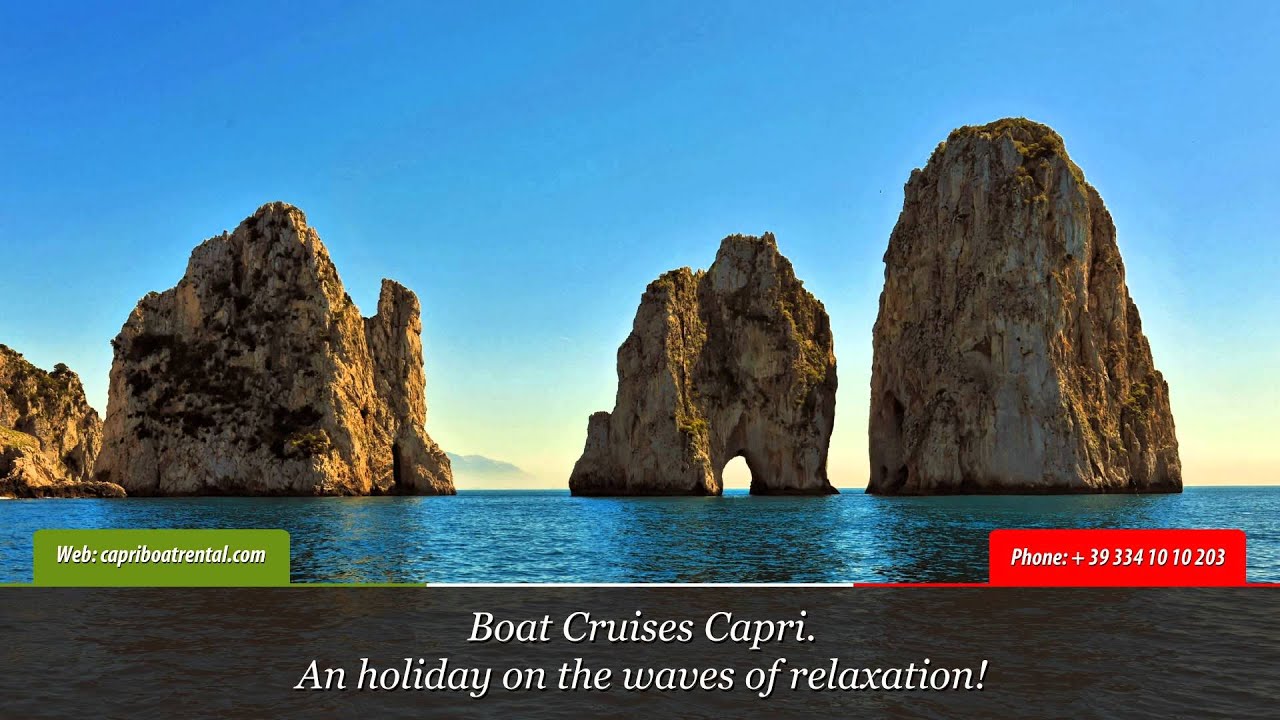
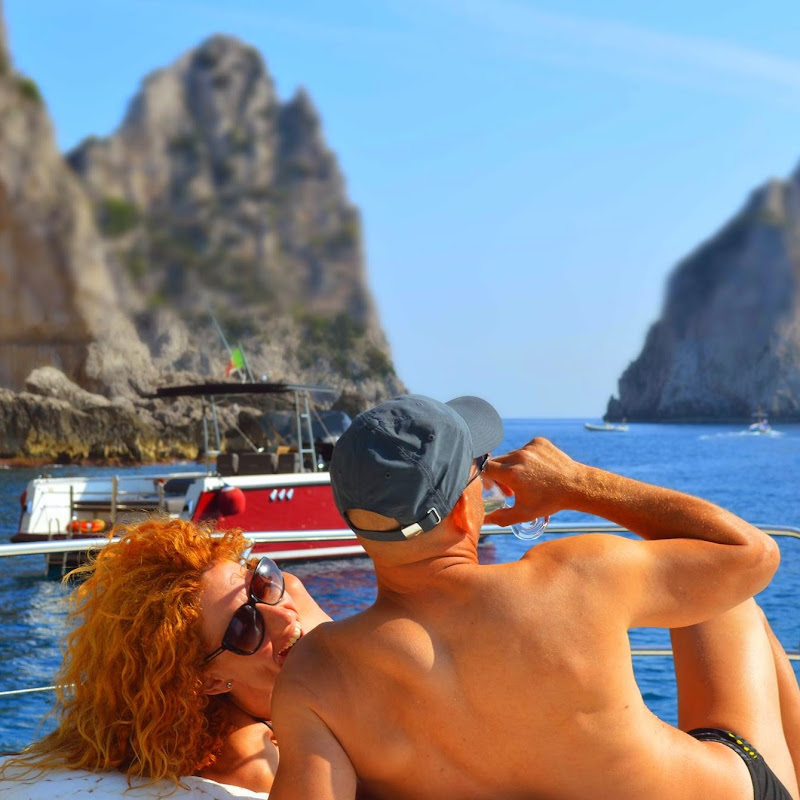
Boat cruises on the isles of Capri with the possibility to sleep on board ship. Cruises with sightseeing to visit Capri and the Amalfi Coast. Web Site: http://www.capriboatrental.com/
0
0
0
47

Juliet spent nearly a year searching for the right fit for two humans and two dogs. The moment she stepped aboard the Island Packet 35—it clicked. 🎧 Full story on the Salty Podcast: https://tinyurl.com/SaltyPodcast56 #SaltyAbandon #SaltyPodcast #Sailing #IslandPacketSailboats #SailingWithDogs #liveaboardlife SALTY ABANDON: Cap'n Tinsley, Orange Beach, AL Oct 2020 to Present: 1998 Island Packet 320 Nov 2015 - Oct 2020: 1988 Island Packet 27 Feb - Nov 2015: 1982 Catalina 25 SALTY PODCAST is LIVE every Wed at 6pm Central and is all about the love of sailing! YOUTUBE PLAYLIST: https://tinyurl.com/SaltyPodcastPlaylist LISTEN TO THE PODCAST (Audio only): Apple: https://podcasts.apple.com/us/podcast/salty-podcast-sailing/id1732800578 Spotify: https://open.spotify.com/show/1qUHKGBDJSiwEZUFiF6CwO Amazon Music: https://music.amazon.com/podcasts/87d4d45b-f013-4222-8927-2efc21ac48cc/salty-podcast-sailing And anywhere you get your podcasts! SUPPORT THE PODCAST: http://patreon.com/SaltyAbandon.
0
0
0
4,730


0
0
0
369