Welcome aboard to the our video site for sailors. We are being constantly blasted by scammers and pirates, so registration is invite only
contact@sailorsahoy.com with "Invite". No spam, no newsletters. Just a free account
Shorts Lumikha

While having been in the "gamle by" in Arhus I took the chance to use my Ricoh Theta V camera in order to make some 360° footage. Afterwards I tried out my workflow to get the spatial audio through my Cyberlink PowerDirector video processing. Workflow: 1. Connect Theta V via USB to your computer 2. Copy the video(s) to you computer (e.g. d:\temp\) 3. Start the "RICOH THETA" app 4. Drag'n'drop the video file(s) (you can select more than one video file) from your computer location (e.g. d:\temp\) onto the "RICOH THETA" app window (or just use open from the file menue) 5. Let the "RICOH THETA" app stich your video(s). It will output a file at the same location (e.g. d:\temp\) with the filename being extended by "_er" (the filename extension is still ".mp4") 6. Drag'n'drop the video file (unfortunately one by one) from your computer location (e.g. d:\temp\) onto the the "RICOH THETA Movie Converter" app icon (e.g. the one on the Desktop) 7. Let the "RICOH THETA Movie Converter" app convert the dropped video file. It will output a file at the same location (e.g. d:\temp\) the same name but the extension ".mov" 8. Open "Cyberlink PowerDirector" go to settings and make sure that under general you configure the used audio channels to "5.1 Surround". 9. In "Cyberlink PowerDirector" import the processed video file(s) with the extension ".mov". 10. In "Cyberlink PowerDirector" drag your video file(s) with the extension ".mov" to the timeline of your 360° project. 11. After editing (avoid changing the audio channel(s) of the Theta V videos except cutting, fading) produce a 360° video with enabled "Surround-Sound" and "Dolby Digital 5.1" 12. Start the "Audacity" app and open the 360° video file produced by "Cyberlink PowerDirector" in it (or just drag'n'drop the file to the desktop icon). You will experience 6 audio channels. 13. In "Audacity" go to "Edit" "Settings" and make sure that for "Import / Export" and "Export of audio" the tick is set for "use own mix" (and no tick for downsample to mono/stereo). 14. In "Audacity" export these audio channels by using "File" / "Export" / "Audio export" (same as CTRL-Shift-E). Change the filename to make it same as the video filename (besides the file extension), leave "WAV (Microsoft) signed 16bit PCM" and press "Save". 15. Now you get an additional selection box. Change the slider to output of four audio channels first. Then you need to edit the lines from the boxes of the left hand side to the boxes on the right hand side. Make left1 being connected only to right1. Make left2 being connected only to right3. Make left3 being connected only to right2. Make left5 being connected only to right4. Now press ok twice. 16. Now we need to replace the audio track of the produced video of "Cyberlink PowerDirector" with the one generated by "Audacity" by using "FFQueue". 17. Start the "FFQueue" app (remove all old jobs if there are some) press the "Add" button and select the produced video of "Cyberlink PowerDirector". Because the audio file has the same filename it will be recognized automatically. You will get three entries in the list. #1.0 video (leave it ticked) #1.1 audio (untick it) and #2.0 audio (leave it ticket). 18. In the "FFQueue" app verify that the FFMPG command line states "%inputs% %preset% %output%" and Preset command lines states "Passthrough". Set the output filename and path and make sure the file extension will be ".mov". Then you can press "Save job". Afterwards press the triangle button "Start". 19. Start the "Spatial Media Metadata Injector". Use the "Open" button to select the file generated by "FFQueue". "My video is spherical (360)" shall be ticked by default. Now you need to tick also "My video has spatial audio (ambiX ACN/SN3D format). Then you need to press "Inject metadata". 20. The "Spatial Media Metadata Injector" app generates a new file with extending the source filename by adding "_injected". The fileextension will stay the same. 21. Upload the file generated by "Spatial Media Metadata Injector" to YouTube. 22. Now you should have audio focussed on the direction you are viewing...

0
0
0
40

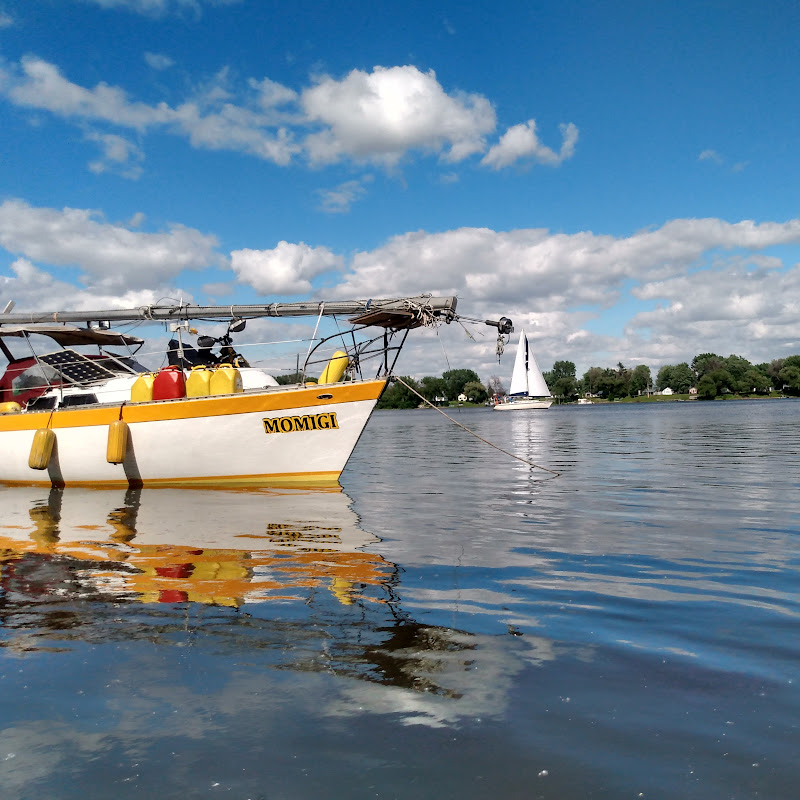
des propos de la par de pecheur mon fais peur pour mon dingy ... donc jai pas pu debarquer a terre par peur de me faire voler mon dingy ... et le lendemain matin ..jai demander ou je pouvais avoir du diesel .. ont ma dit dans lautre ville a coter .... je suis aller il y avais rien ..mais de retour a st sulpice ... jai trouver du diesel a moin de 300 metres ...
0
0
0
4

► Essai complet dans Multicoques mag N°225 : https://www.multicoques-mag.com/essais/moteur/longreach-1900-pour-la-croisiere-au-tres-long-cours ► Hull #1 of the Longreach 1900 was launched on August 21st, and less than 3 months later, hull #2 was splashed... and this clearly indicates that the Longreach Power Catamarans shipyard, based in Pattaya, Thailand, has found its cruising rhythm, and numerous launches are already scheduled! Before giving you the full test of the flagship of the range, which also includes a 1200 and a 1400, we can give you a few details. Its hulls feature inverted bows to increase the waterline length as well as ensuring a wave-piercing effect. Deflecting chines keep the deck dry and the robust keels allow for taking the ground. With its long-range tanks, the 58 can extend its range to almost 4,000 nautical miles while maintaining a speed of 8 knots. The flybridge is a friendly space with an immense area for relaxation, a table and a bar with refrigerator/freezer. This upper deck can be completely enclosed aboard the Expedition version. The highlight of the interior has got to be the owner's suite with its king-size bed. Headroom exceeds 6 feet 10 inches (2.1 m) throughout. ► TECHNICAL SPECIFICATIONS Builder: Longreach Power Catamarans Length: 57.74’ (17.6 m) Beam: 24.9’ (7.6 m) Draft: 3.94’ (1.2 m) Air draft: 21.65’ (6.6 m) Displacement: 70,550 lbs (32 t) Fuel: 687 or 2,536 US gal (5,600 or 9,600 l) Water: 2 x 118 US gal (2 x 450 l) Motors: 2 x 440 HP Yanmar Maximum speed: 20 knots Cruising speed: 11.5 knots Range at 11.5 knots: 2,000 nm (allowing a 10% reserve) www.longreachcatamarans.com ► Become a FREE SUBSCRIBER to Multihulls World's YouTube page now - https://www.youtube.com/c/MultihullsWorld ► Log on to our website to discover over 500 multihulls tests! Subscribe to our newsletter to take advantage of our promotions and boat show invitations! https://www.multihulls-world.com/ ► Follow us on Facebook! https://m.facebook.com/MultihullsWorldMag/?locale2=fr_FR ► Discover us on Instagram! https://www.instagram.com/multihulls_world/ ► Follow our multi news on X https://twitter.com/multihullsworld?lang=fr ► Let’s talk about business https://www.linkedin.com/company/multicoques-mag-multihulls-world/ ► Like us on TikTok! https://www.tiktok.com/@multihullsworldmag #multicoquesmag #multihullsworld #catamaran #powercat #kevingreen #singapore #seatrial #longreach #longreachcatamarans #longreach1900

0
0
0
330

Nothing like some bvitherapy! 🌞 come sailing with us in one of the world's best cruising grounds👇 🧑💻horizonyachtcharters.com

0
0
0
14

0
0
0
0
924


0
0
0
381