Welcome aboard to the our video site for sailors. We are being constantly blasted by scammers and pirates, so registration is invite only
contact@sailorsahoy.com with "Invite". No spam, no newsletters. Just a free account
السراويل القصيرة خلق

Stay, play, dine, work, swim, bike, laugh, surf, relax, smile...we're ready when you are! Welcome to the Catamaran Resort Hotel and Spa, a tropical hideaway in San Diego’s Pacific Beach community. Our Polynesian-themed resort, only 8 miles from San Diego International Airport, offers casual elegance with palm trees, lush vegetation, tiki torches, koi ponds, waterfalls, and exotic birds that like to strike up conversations with guests. With Mission Bay as our backyard and the Pacific Ocean across the street, there's no better choice among Pacific Beach San Diego hotels. Whether you enjoy sunbathing at the beach, relaxing by the pool, rejuvenating in the Catamaran Spa’s hot tub that overlooks the bay, paddle boarding, or cruising up and down the boardwalk on a bike or Segway, we have something for everyone. When you’re ready to venture out into America’s Finest City, you are just 3 miles from SeaWorld San Diego, 12 miles from the world-famous San Diego Zoo, and 28 miles from LEGOLAND California.

0
0
0
55,773
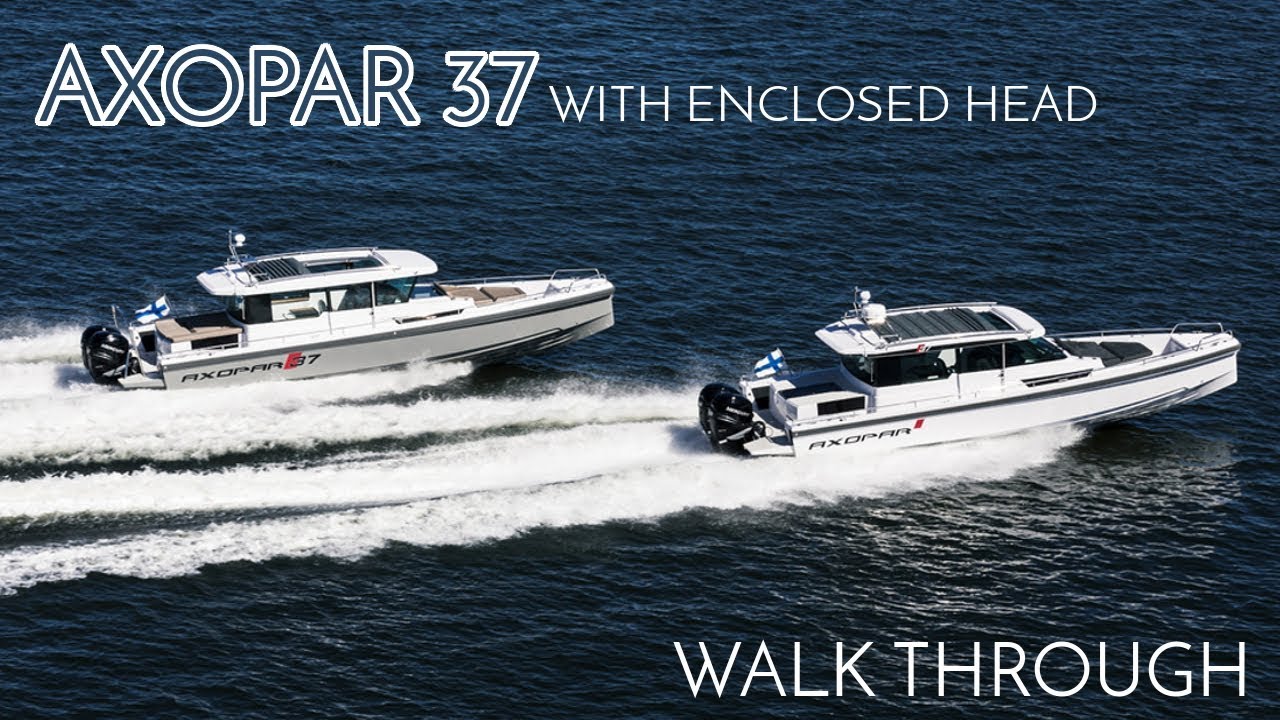
Interested in the 37 with the enclosed head option? Take a look! For more info, call (207)846-4545 or email yachts@ecys.com Music by Joakim Karud @joakimkarudmusic

0
0
0
2,900

Small rubber boat people on board 

0
0
0
18

Last Wednesday, I went down to our local harbor for a dawn paddle on my stand up paddleboard (SUP). Sunrise on a spring morning is a special time, and what better place to see it than from the water? I stuck my bow into coves that are too shallow to reach on a "real" boat, and skimmed along the marsh shoreline for a closeup of the osprey pair in their nest. (They watched my progress carefully, but didn't fly away.) Duck families and a flock of Canada geese were my only other companions. http://blog.boats.com/2014/04/wednesday-water-sunrise-sup/ For more boating videos, visit http://www.boats.com. Boats.com features boat reviews, how-to videos, special features, and information about new boats, boats for sale, and boating products—usually with a dash of fun. Our reviewers test the features, performance, and specifications of each boat, searching out the hidden details for a critical evaluation. If you're shopping for a boat, we want to help you make the best choice. And if you're just looking, we'll try to make it fun too. Subscribe to receive notification of new videos.

0
0
0
693

Introduktionskurs i segling, dag 2, läs mer på www.sailstar.se

0
0
0
139

When you think you are in the right direction... sometimes you realize that you have to take a step back, visit new options and redo part of your work. Removing our runners was a great idea, but surprisingly came with more unplanned modifications (major ones). It will all make sense once you start watching. Wish us luck! Full episode: https://youtu.be/k40zG8jY_xM #sailing #boatyard #keeldesign

0
0
0
1,243