Welcome aboard to the our video site for sailors. We are being constantly blasted by scammers and pirates, so registration is invite only
contact@sailorsahoy.com with "Invite". No spam, no newsletters. Just a free account
السراويل القصيرة خلق

0
0
0
0
14

0
0
0
1,343

#hurricane #hurricaneberyl #hurricaneseason #hurricaneseason2024 #sailingexperience
0
0
0
4,469
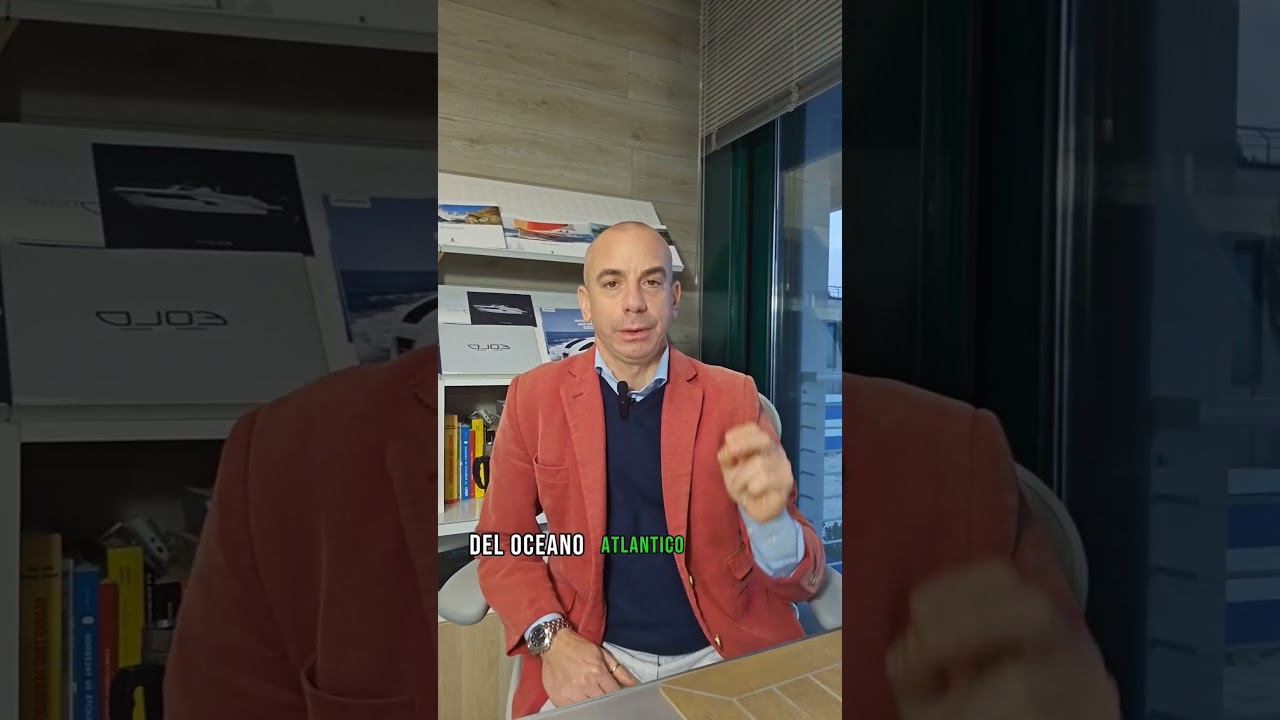
alisei: (s.m.) [A]. (Vento e Mare) trade winds, trades Venti costanti dominanti nell'Oceano Atlantico e la parte orientale dell'Oceano Pacifico. Spirano da Nord-Est nell'emisfero boreale e da Sud-Est nell'emisfero australe. Si generano normalmente per l'elevato innalzamento dell'aria all'Equatore (dovuto al forte riscaldamento) che richiama aria in superficie dalle zone polari, generando un moto da Nord / Sud verso l'Equatore. Per effetto della rotazione terrestere si genera uno spostamento della direzione verso Est. [B]. controa. (Vento e Mare) anti-trade winds Correnti d'aria che scorrono alle alte quote (4-10 km) nelle stesse zone tropicali dove si manifestano gli alisei, ma con direzione opposta. Sono generati dagli stessi movimenti di masse d'aria che generano gli alisei e ne chiudono il circuito atmosferico, assieme alle zone di calma equatoriale. Si possono notare osservando che la direzione delle nuvole alte è opposta al vento di superficie. approdare: (v.) (Identificazione) to land Avvicinarsi o arrivare in un punto della costa, o in un porto. Equivalente ad "atterrare". anticiclone: (s.m.) (Vento e Mare) anticyclone Area circoscritta dove la pressione atmosferica è massima e va gradualmente diminuendo radialmente a partire dal centro verso la periferia. L'anticiclone si sposta dando origine ad un "movimento anticiclonico". Il vento in superficie diverge dal centro di alta pressione con un movimento rotatorio (da sinistra a destra nelle latitudini nordo) e genera una corrente d'aria discensionale in corrispondenza di tale centro, che viene a sostituire l'aria che si sposta in superficie. L'anticiclone è l'opposto della "depressione", occupa grandi estensioni, spesso tra più depressioni e porta normalmente bel tempo, con regimi di vento leggeri, a causa della lenta variazione di pressione spostandosi dal centro verso la periferia (si dice basso "gradiente barico"). Un esempio sono gli anticicloni nel Mediterraneo occidentale (e in Europa in generale), estivi o invernali, che possono mantenere anche per settimane un regime di bel tempo sopra le regioni interessate. "Benvenuti su 'Parole di Bordo', la nuova serie di video shorts di Barche Bellandi dove la nautica si fa semplice! 🌊⚓ Ogni episodio è un tuffo nel mondo dei termini nautici, spiegati in modo chiaro e accessibile a tutti. Che tu sia un veterano del mare o un novizio, queste pillole di sapere nautico arricchiranno la tua esperienza in barca. Dalla 'prua' alla 'poppa', dai 'nodi' ai 'gommoni', scopri il significato dietro ogni termine con brevi video ricchi di informazioni e curiosità. Iscriviti e naviga con noi nel linguaggio del mare! #ParoleDiBordo #NauticaPerTutti #BarcheBellandi #Nauticainpillole #ParoleDiBordo #NauticaPerTutti #TerminiNauti ci #VocabolarioNa utico #BarcheBellandi #Yachting #Sailing #BoatingTips #MarineVocabulary #LearnBoating 📌 Vienimi a trovare presso il cantiere BARCHE BELLANDI a Via Vò s/n 25015 Desenzano del Garda (BS) o chiamaci allo +39 030 912 03 64 🛥 Sei un appassionato del mondo della nautica? Vieni a dare un'occhiata al mio blog http://www.barchemania.com Il canale YouTube di Barche Bellandi è l'unico in Italia che ti permette di essere sempre aggiornato su: ✔ Test in acqua imbarcazioni nuove. ✔ Test in acqua imbarcazioni usate. ✔ Presentazione in anteprima di imbarcazioni ai saloni nautici. ✔ Tutorial pratici su imbarcazioni ed accessori. ✔ Tutorial tecnici su imbarcazioni e motori. ✔ Riflessioni sul mondo della nautica da diporto. Mi trovi anche su: Facebook https://www.facebook.com/barchebellandi Blog http://www.barchemania.com Rimani in contatto con me iscrivendoti al canale Barche Bellandi https://www.youtube.com/NauticaBellandi 📝 Se hai dubbi o domande inerenti al video lascia un commento, ti risponderò al più presto! Buon vento Oscar Bellandi

0
0
0
409

0
0
0
1,150
0
0
0
30