Welcome aboard to the our video site for sailors. We are being constantly blasted by scammers and pirates, so registration is invite only
contact@sailorsahoy.com with "Invite". No spam, no newsletters. Just a free account
السراويل القصيرة خلق

Join Alexander Marine New Zealand Yacht Sales Executive Kelvin Gorrie as he does a walk-through of the Aquila 36 Molokai at the 2026 Discover Boating Miami Boat Show. The 36 Molokai packs the rugged spirit of Molokai into a versatile 36-foot platform, delivering big-boat capability and performance for those who refuse to compromise. Whether you’re chasing nearshore species, entertaining friends on sunset cruises, or exploring secluded beaches, this is your ticket to adventure. The expansive aft deck is designed for serious anglers, featuring an integrated tackle station, yet easily converts into an entertainment hub with the optional summer kitchen and BBQ setup. Pull-out coolers offer smart storage solutions while doubling as extra aft-facing seating for guests. To find out more or to talk to one of our Yacht Sales Executives, visit www.alexandermarineaust.com.au or call +61 (0)7 5618 0000.

0
0
0
56

Join yacht broker Brent Hermann for a closer look at Pier 7 Marina and Annapolis Yacht Sales, your go-to team for catamarans and yachts on the Chesapeake Bay. Located just outside downtown Annapolis, this resort marina offers premier catamaran dockage, full-service yacht repairs, and expert guidance whether you’re ready to buy a boat in Annapolis or sell your boat nearby. Annapolis Yacht Sales is one of the East Coast’s top dealerships, specializing in new and used catamarans and monohulls, with full support from Annapolis Yacht Services on-site. If you're preparing for hurricane season, upgrading your vessel, or just exploring your next move, this is the hub for serious boaters. Connect with Brent Hermann for more information! Brent.hermann@annapolisyachtsales.com or (410) 267 – 8181 #Pier7Marina #AnnapolisYachtSales #AnnapolisYachtServices #BrentHermann #CatamaranMarina #BuyABoatAnnapolis #SellYourBoatAnnapolis #CatamaranLife #YachtServices #BoatLife #ResortMarina #HurricaneSeason #ChesapeakeBayBoating #LiveaboardLife #YachtBroker #SailingAnnapolis
0
0
0
212

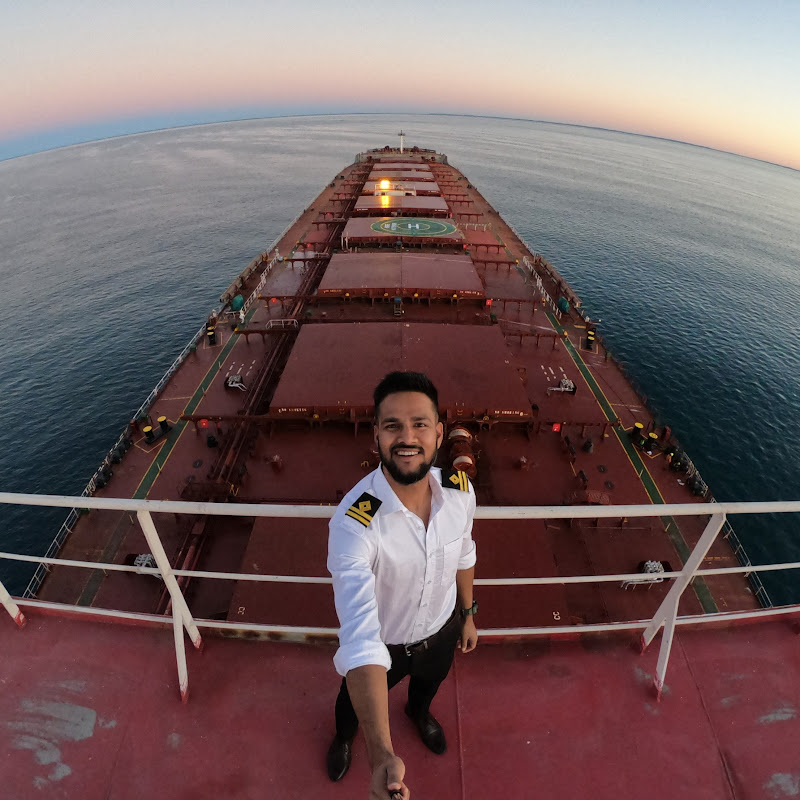
Let's Find Out The Highest point of the ship which is the top of Ship's Main Mast.
0
0
0
12,854

Yacht Name: UD-30 Build: Sunseeker Length: 95ft Max Capacity: 25 Guests Number of Cabins: 4 Price: 5,000 AED/Hr + VAT

0
0
0
10

0

0
0
0
343

While having been in the "gamle by" in Arhus I took the chance to use my Ricoh Theta V camera in order to make some 360° footage. Afterwards I tried out my workflow to get the spatial audio through my Cyberlink PowerDirector video processing. Workflow: 1. Connect Theta V via USB to your computer 2. Copy the video(s) to you computer (e.g. d:\temp\) 3. Start the "RICOH THETA" app 4. Drag'n'drop the video file(s) (you can select more than one video file) from your computer location (e.g. d:\temp\) onto the "RICOH THETA" app window (or just use open from the file menue) 5. Let the "RICOH THETA" app stich your video(s). It will output a file at the same location (e.g. d:\temp\) with the filename being extended by "_er" (the filename extension is still ".mp4") 6. Drag'n'drop the video file (unfortunately one by one) from your computer location (e.g. d:\temp\) onto the the "RICOH THETA Movie Converter" app icon (e.g. the one on the Desktop) 7. Let the "RICOH THETA Movie Converter" app convert the dropped video file. It will output a file at the same location (e.g. d:\temp\) the same name but the extension ".mov" 8. Open "Cyberlink PowerDirector" go to settings and make sure that under general you configure the used audio channels to "5.1 Surround". 9. In "Cyberlink PowerDirector" import the processed video file(s) with the extension ".mov". 10. In "Cyberlink PowerDirector" drag your video file(s) with the extension ".mov" to the timeline of your 360° project. 11. After editing (avoid changing the audio channel(s) of the Theta V videos except cutting, fading) produce a 360° video with enabled "Surround-Sound" and "Dolby Digital 5.1" 12. Start the "Audacity" app and open the 360° video file produced by "Cyberlink PowerDirector" in it (or just drag'n'drop the file to the desktop icon). You will experience 6 audio channels. 13. In "Audacity" go to "Edit" "Settings" and make sure that for "Import / Export" and "Export of audio" the tick is set for "use own mix" (and no tick for downsample to mono/stereo). 14. In "Audacity" export these audio channels by using "File" / "Export" / "Audio export" (same as CTRL-Shift-E). Change the filename to make it same as the video filename (besides the file extension), leave "WAV (Microsoft) signed 16bit PCM" and press "Save". 15. Now you get an additional selection box. Change the slider to output of four audio channels first. Then you need to edit the lines from the boxes of the left hand side to the boxes on the right hand side. Make left1 being connected only to right1. Make left2 being connected only to right3. Make left3 being connected only to right2. Make left5 being connected only to right4. Now press ok twice. 16. Now we need to replace the audio track of the produced video of "Cyberlink PowerDirector" with the one generated by "Audacity" by using "FFQueue". 17. Start the "FFQueue" app (remove all old jobs if there are some) press the "Add" button and select the produced video of "Cyberlink PowerDirector". Because the audio file has the same filename it will be recognized automatically. You will get three entries in the list. #1.0 video (leave it ticked) #1.1 audio (untick it) and #2.0 audio (leave it ticket). 18. In the "FFQueue" app verify that the FFMPG command line states "%inputs% %preset% %output%" and Preset command lines states "Passthrough". Set the output filename and path and make sure the file extension will be ".mov". Then you can press "Save job". Afterwards press the triangle button "Start". 19. Start the "Spatial Media Metadata Injector". Use the "Open" button to select the file generated by "FFQueue". "My video is spherical (360)" shall be ticked by default. Now you need to tick also "My video has spatial audio (ambiX ACN/SN3D format). Then you need to press "Inject metadata". 20. The "Spatial Media Metadata Injector" app generates a new file with extending the source filename by adding "_injected". The fileextension will stay the same. 21. Upload the file generated by "Spatial Media Metadata Injector" to YouTube. 22. Now you should have audio focussed on the direction you are viewing...

0
0
0
31