close

Welcome aboard to the our video site for sailors. We are being constantly blasted by scammers and pirates, so registration is  invite only


contact@sailorsahoy.com with "Invite". No spam, no newsletters. Just a free account

Cortos crear

#catamaran #hobiecat # sailing #tuzla #istanbul
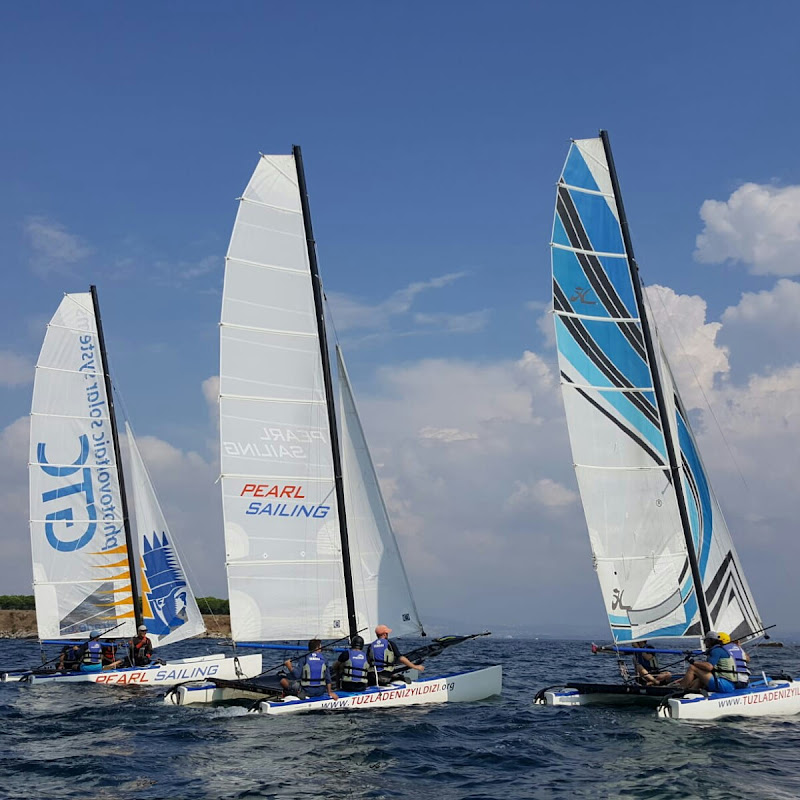
pearlsailingcatamaranhobie7109

0

0

26

Big yacht for a big company! For your guests comfort, you can rent a yacht starting from 2 hours for a Bosphorus tour along Istanbul coast or go on trip to the islands for the whole day. Official website: https://brilions.com E-mail: info@brilions.com WhatsApp and the phone number for any question: russian language +7 958 111 9529 english language +44 78 9707 2330 Instagram: russian language https://www.instagram.com/brilions/ english language https://www.instagram.com/brilions.eng/ Facebook: russian language https://www.facebook.com/brilions.yacht english language https://www.facebook.com/brilions.eng VK: https://vk.com/brilions.yacht You can check feedbacks about us here: Yandex - https://yandex.ru/profile/67155125910 Google.Business - https://goo.gl/maps/ZVpKmbRVfozdVxTT7 TripAdvisor - https://www.tripadvisor.ru/Attraction_Review-g297962-d20325971-Reviews-Brilions-Antalya_Turkish_Mediterranean_Coast.html See also: Motor yacht Nautica Oceanis - Аntalya - https://youtu.be/DQ5nWBvlDBo Motor yacht BERRE LAL - Istanbul - https://youtu.be/AAquZM5H14I #yachtinantalya #yachtinkemer #yachtrent #holidayinantalya #yachtvoyage #yachtrentalinantalya#andiamoyacht #yachtrentalinantalya

brilions

0

0

76

1 Mayıs'da başlayan yelkenli seyir serüvenimiz başladı bile... Haydi siz de bize katılın!

eleven11sailing

0

0

2,230

Wenn kein Mondlicht und keine künstliche Lichtquelle stören: Zeitrafferaufnahme aus 1626 Einzelbilder, geschossen mit einer Sony RX100Va versorgt mit einer Powerbank und Remote-Controller. Zahlreiche Satelliten stören das Spektakel. Ausschnitt aus dem Film "Jenseits des Trubels" https://www.youtube.com/watch?v=B8m3gVw7EUA

mariancarton

0

0

1,148

The Corsair 880 is real cruising boat, yet trailerable across continents. Corsair is famous for the excellent trailering characteristics our trimarans offer, and this same ability proves true for the Corsair 880. Especially since she only takes a single handed sailor about 60 minutes to go from trailer to sailor and back again after a couple of practice runs. Corsairs fold up and extend effortlessly, the mast comes down in moments, the boats towed and trailered easily and smoothly which offers significant cost savings when compared to marina and on water maintenance fees.

corsairmarinetris

0

0

4,960

While having been in the "gamle by" in Arhus I took the chance to use my Ricoh Theta V camera in order to make some 360° footage. Afterwards I tried out my workflow to get the spatial audio through my Cyberlink PowerDirector video processing. Workflow: 1. Connect Theta V via USB to your computer 2. Copy the video(s) to you computer (e.g. d:\temp\) 3. Start the "RICOH THETA" app 4. Drag'n'drop the video file(s) (you can select more than one video file) from your computer location (e.g. d:\temp\) onto the "RICOH THETA" app window (or just use open from the file menue) 5. Let the "RICOH THETA" app stich your video(s). It will output a file at the same location (e.g. d:\temp\) with the filename being extended by "_er" (the filename extension is still ".mp4") 6. Drag'n'drop the video file (unfortunately one by one) from your computer location (e.g. d:\temp\) onto the the "RICOH THETA Movie Converter" app icon (e.g. the one on the Desktop) 7. Let the "RICOH THETA Movie Converter" app convert the dropped video file. It will output a file at the same location (e.g. d:\temp\) the same name but the extension ".mov" 8. Open "Cyberlink PowerDirector" go to settings and make sure that under general you configure the used audio channels to "5.1 Surround". 9. In "Cyberlink PowerDirector" import the processed video file(s) with the extension ".mov". 10. In "Cyberlink PowerDirector" drag your video file(s) with the extension ".mov" to the timeline of your 360° project. 11. After editing (avoid changing the audio channel(s) of the Theta V videos except cutting, fading) produce a 360° video with enabled "Surround-Sound" and "Dolby Digital 5.1" 12. Start the "Audacity" app and open the 360° video file produced by "Cyberlink PowerDirector" in it (or just drag'n'drop the file to the desktop icon). You will experience 6 audio channels. 13. In "Audacity" go to "Edit" "Settings" and make sure that for "Import / Export" and "Export of audio" the tick is set for "use own mix" (and no tick for downsample to mono/stereo). 14. In "Audacity" export these audio channels by using "File" / "Export" / "Audio export" (same as CTRL-Shift-E). Change the filename to make it same as the video filename (besides the file extension), leave "WAV (Microsoft) signed 16bit PCM" and press "Save". 15. Now you get an additional selection box. Change the slider to output of four audio channels first. Then you need to edit the lines from the boxes of the left hand side to the boxes on the right hand side. Make left1 being connected only to right1. Make left2 being connected only to right3. Make left3 being connected only to right2. Make left5 being connected only to right4. Now press ok twice. 16. Now we need to replace the audio track of the produced video of "Cyberlink PowerDirector" with the one generated by "Audacity" by using "FFQueue". 17. Start the "FFQueue" app (remove all old jobs if there are some) press the "Add" button and select the produced video of "Cyberlink PowerDirector". Because the audio file has the same filename it will be recognized automatically. You will get three entries in the list. #1.0 video (leave it ticked) #1.1 audio (untick it) and #2.0 audio (leave it ticket). 18. In the "FFQueue" app verify that the FFMPG command line states "%inputs% %preset% %output%" and Preset command lines states "Passthrough". Set the output filename and path and make sure the file extension will be ".mov". Then you can press "Save job". Afterwards press the triangle button "Start". 19. Start the "Spatial Media Metadata Injector". Use the "Open" button to select the file generated by "FFQueue". "My video is spherical (360)" shall be ticked by default. Now you need to tick also "My video has spatial audio (ambiX ACN/SN3D format). Then you need to press "Inject metadata". 20. The "Spatial Media Metadata Injector" app generates a new file with extending the source filename by adding "_injected". The fileextension will stay the same. 21. Upload the file generated by "Spatial Media Metadata Injector" to YouTube. 22. Now you should have audio focussed on the direction you are viewing...

sixten828

0

0

31